Download and use the template
Download the employee directory template for Excel. The file has two sheets: Directory, with blank rows to complete, and Example, showing four fictional colleagues. Both include a short field guide and an operational update log. All example email addresses use example.com and are not real staff contacts.
Save one controlled working copy in your company workspace. Decide who can view it and who can edit it before adding real information. Replace the example rather than treating it as part of your team. The download is a general workbook, not a tested import file for ManageAnyTeam or another HR platform.
Choose fields that help colleagues find people
A staff directory should answer a practical question: “Who handles this, and how do I contact them at work?” Collecting more information does not automatically improve that answer.
| Field | What to enter | Why it helps |
|---|---|---|
| Staff ID | A stable, unique text identifier | Distinguishes colleagues with similar names |
| Display name | The name colleagues use at work | Supports an ordinary name search |
| Role | A consistent job or responsibility label | Helps find the person handling a request |
| Department | One agreed team label | Makes filtering reliable |
| Work email | The company contact address | Provides a direct work contact route |
| Work location | Office, site or remote, where needed | Helps route location-specific questions |
| Profile owner | The person responsible for accuracy | Gives changes a clear destination |
| Last reviewed | The date someone checked the profile | Shows when the information was verified |
Keep labels consistent
Choose one department label, such as “Customer support”, rather than mixing “CS”, “Support” and “Customer service” accidentally. If those are genuinely different teams, define the distinction. Keep identifiers as text so a code such as 0017 retains its leading zeros.
An optional company phone extension can be useful if it is a normal work contact route. Add it only if someone owns its accuracy. A photo is optional; it is not necessary to make the workbook function. Avoid adding personal fields simply because another template includes them.
Keep private HR records separate
Do not add home addresses, personal emergency contacts, salary, disciplinary notes, absence reasons or medical information to a generally shared directory. A payroll or HR record has a different audience and purpose.
The ICO's data-minimisation guidance explains that personal information should be adequate, relevant and limited to what is necessary. Its employment-records guidance is the appropriate starting point when designing the wider employee-record process.
A hidden tab is not a suitable place to separate confidential HR data from colleagues viewing the directory. Google's guidance on protected sheets explains the limits of protection and copying. Keep private records in a separately controlled system or file, with access appropriate to their purpose.
A fictional employee contact list example
| Staff ID | Name | Role | Department | Work location |
|---|---|---|---|---|
| E001 | Alex Morgan | Service coordinator | Customer support | Birmingham |
| E002 | Sam Taylor | Site supervisor | Operations | Coventry |
| E003 | Jamie Patel | Accounts assistant | Finance | Birmingham |
| E004 | Robin Jones | Project coordinator | Operations | Remote |
These records demonstrate structure, not a real organisation. For example, a colleague asking about an invoice can filter Finance and find Jamie's work contact. A site question can be narrowed by Operations and Coventry. A person's name alone would not explain either responsibility.
If two people have the same role, add a useful work distinction such as site or service area. Do not invent a seniority or reporting relationship to make the result unique. Check the responsibility with the relevant manager.
Test name, role and department searches
Before sharing the directory, ask a colleague unfamiliar with the file to complete three tasks using its filter controls or spreadsheet search:
- Find Alex Morgan by name and identify the work email.
- Find the site supervisor without being given a person's name.
- Filter Operations and identify the person based in Coventry.
Check the result against the source record. If a search misses a person because labels vary, correct the data rather than adding more decorative fields. In a larger team, repeat the checks with duplicate surnames, role changes and multiple locations.
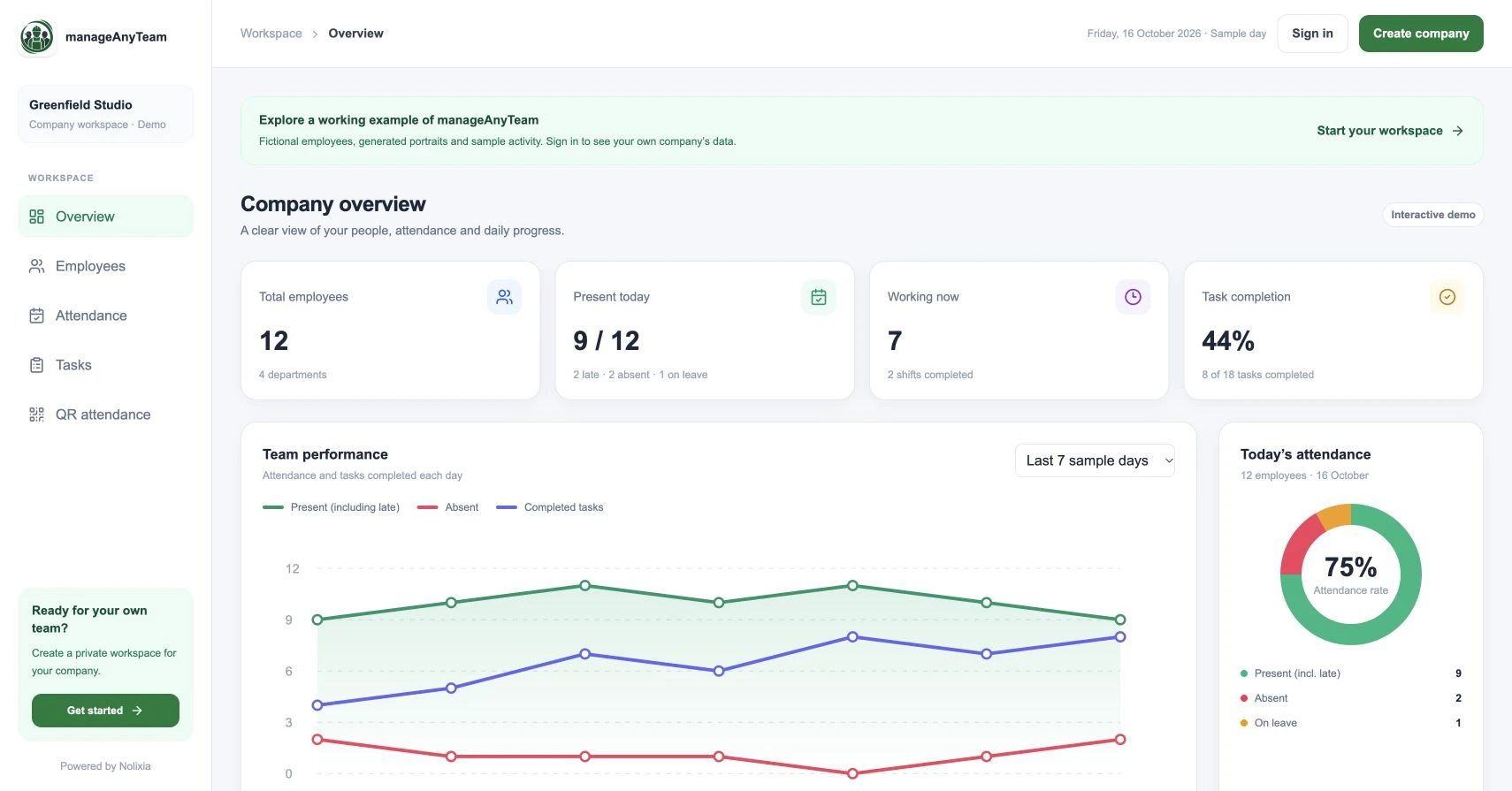
For a product evaluation, use the same tasks in a demonstration. Our employee directory software guide explains the public ManageAnyTeam example. Its demonstration records are fictional; verify the permissions and update workflow you need in an appropriate company workspace before using real records.
Assign joiner, role-change and leaver updates
Choose a directory owner and a backup. A manager can confirm responsibility and team details; the directory owner can apply the approved change and check that colleagues see the current result. Employees need a clear way to request corrections.
| Event | Check before changing the directory | Completion check |
|---|---|---|
| Joiner | Confirm display name, work contact, role and start arrangements with the responsible team | Search by name and role; check intended visibility |
| Role or location change | Confirm the new label and who now handles the previous responsibility | Remove misleading old information and repeat affected searches |
| Leaver | Confirm when the person should leave the active contact list and who takes over their work | Active searches route requests to a current owner |
| Correction request | Verify the proposed correction with the profile owner | Record the operational change and review date |
Use the small update log for the date, staff ID, change and owner. “Role checked” or “Work location updated” is sufficient. Do not record confidential reasons for an employment change in a shared log. Decide retention of historical employee records separately from removal from the active directory.
Choose a review frequency that matches how often the team changes, and update promptly after confirmed events. A review date helps reveal stale information, but a recent date is useful only if someone actually checked the record. For responsibilities beyond a directory, see our employee management software checklist.
When a spreadsheet needs a different workflow
A spreadsheet can work when there is one reliable copy, access is controlled and updates reach the owner. Review the workflow if colleagues circulate conflicting copies, departments cannot maintain consistent labels, or you cannot establish who changed a record.
Assess alternatives using the same search and change tasks. Ask about access, correction history, record removal and export using your actual requirements. There is no universal staff-count threshold at which a spreadsheet becomes unsuitable.
Keep the directory connected to useful work without expanding its audience unnecessarily. A role can help identify an owner, while the task itself needs a separate brief, deadline and completion check. Our guide to assigning tasks with a clear owner covers that next step.
Keep attendance in a separate, appropriately restricted workflow. The attendance register and exception-log template illustrates that process without putting individual absence details in a shared directory.
Common questions
Which details belong in a shared directory?
Start with the work details needed to identify and contact colleagues: name, role, team and work contact route. Add location or another field only for a clear operational purpose. Keep private HR information separate.
Who should update a profile?
Give each profile a responsible owner and give the overall directory a named maintainer and backup. Make correction requests easy, then verify and apply changes through that process.
Is a spreadsheet enough?
It can be, if it stays accurate, accessible to the intended colleagues and controlled. Test real search and update tasks; use recurring failures as evidence for changing the workflow.